Setup Your Profile
Welcome to HabSync! You've successfully logged in, and now it’s time to set up your profile. Follow the steps in this guide to complete your profile setup.
Access the Profile Page
-
Open your web browser and navigate to your ERP's login page.
-
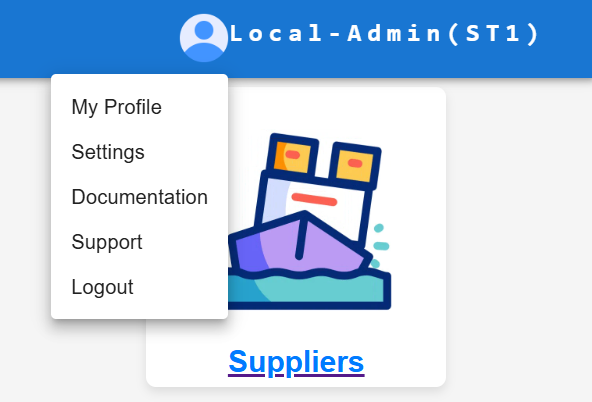
Once logged in, click on your account avatar icon located in the navigation bar. This will open a menu with key ERP options.
-
From the menu, select My Profile.
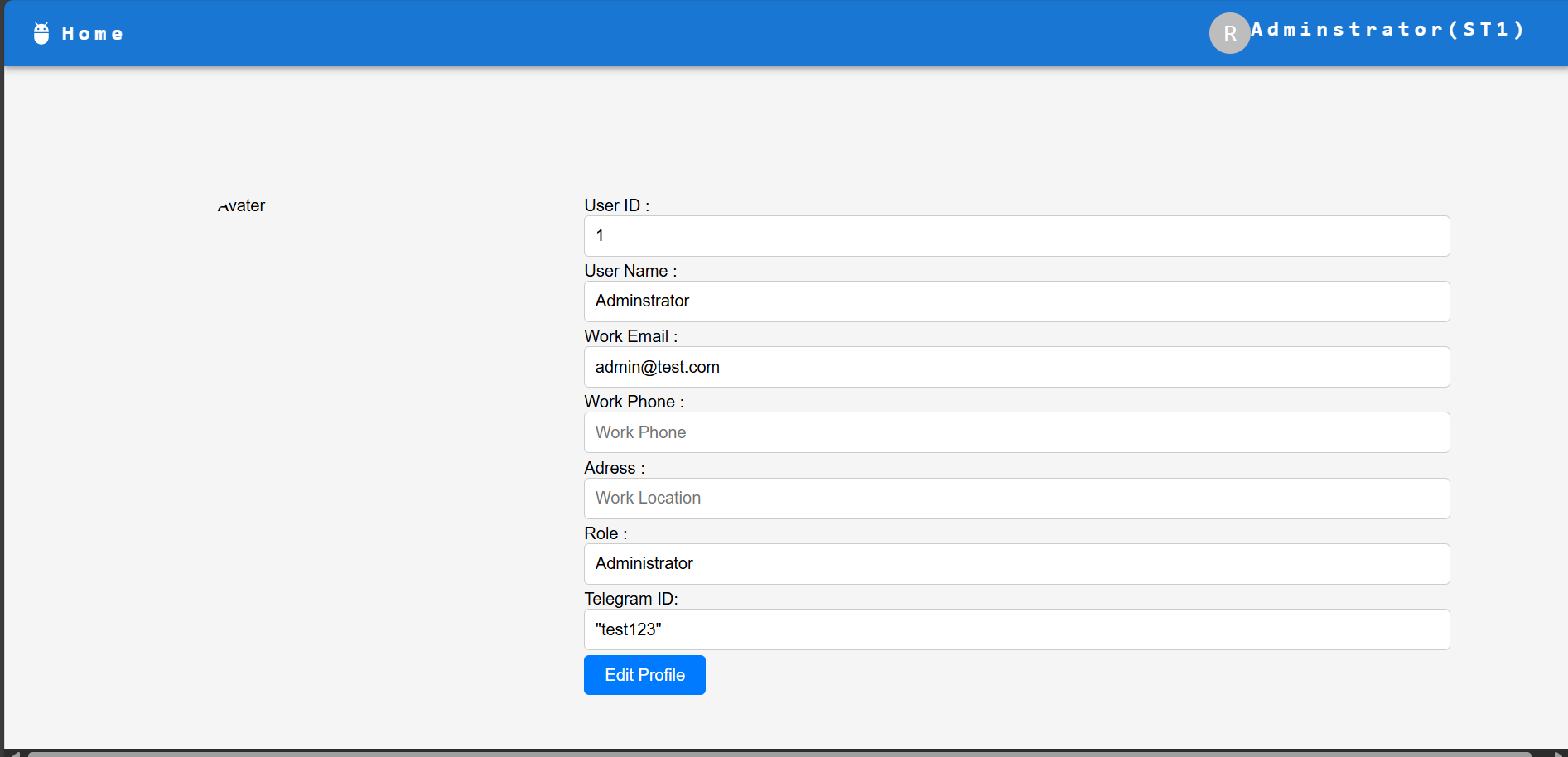
Congratulations! You've landed on your My Profile page.
On this page, you can view and manage your personal information within the organization.
Edit Your Profile
If you'd like to make any updates, follow these simple steps:
-
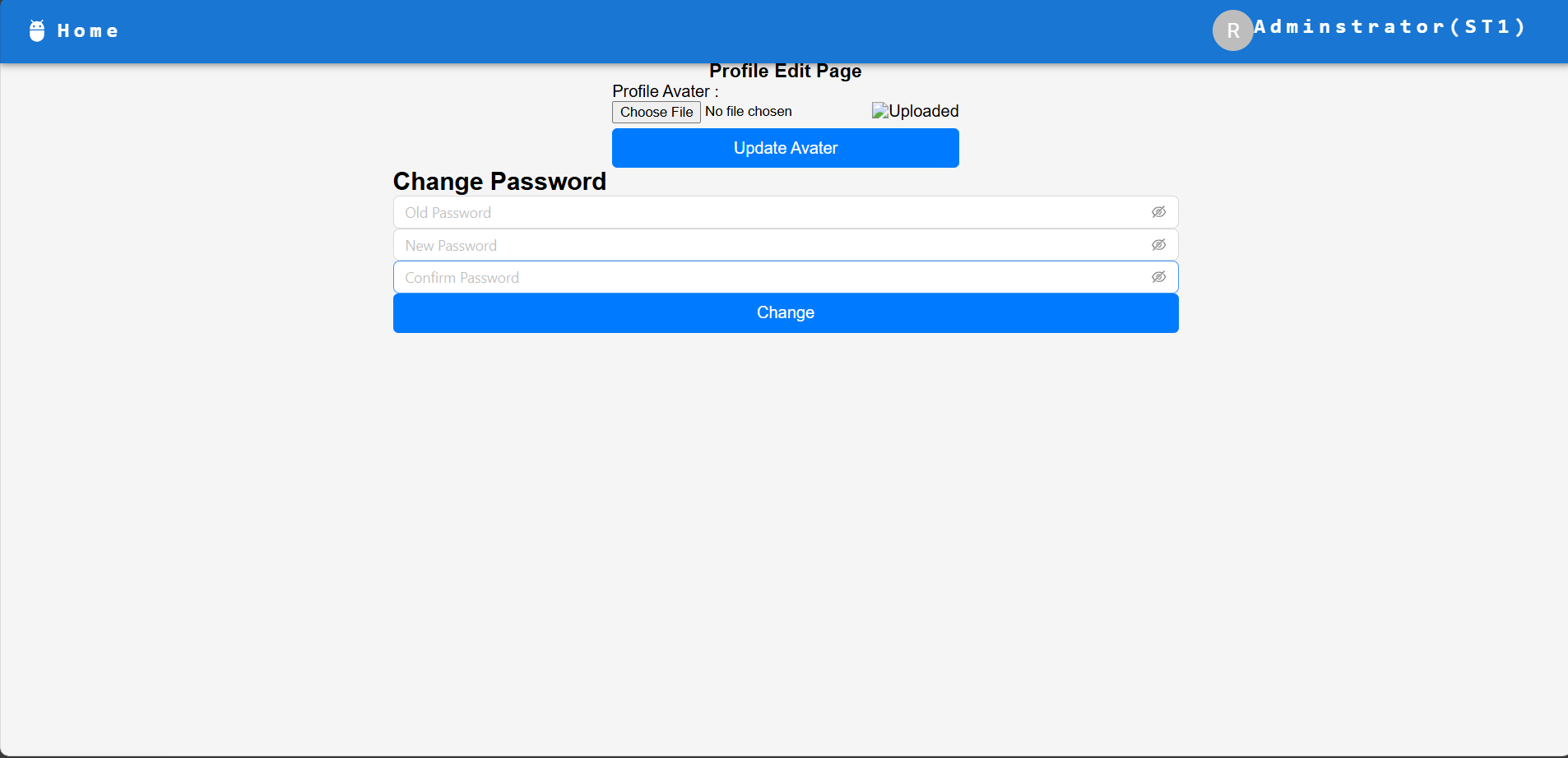
Click on the Edit Profile button. This allows you to make changes to your profile without anyone else knowing.
-
You can update the following fields:
- Avatar image: Upload a new profile picture.
- Password: Change your password.
Change Your Password
To change your password, follow these steps:
-
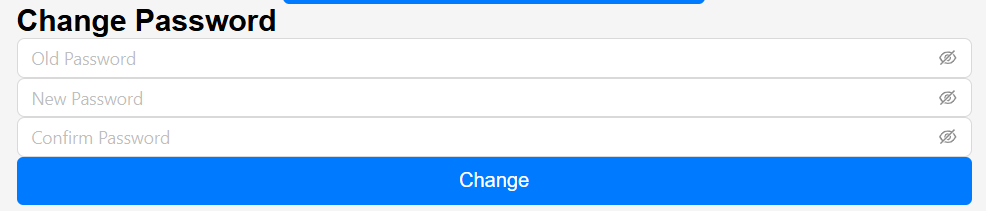
In the Password section, you will see three fields:
- Old Password: Enter your current password.
- New Password: Enter your desired new password.
- Confirm New Password: Re-enter your new password to confirm.
-
After filling in the fields, click Save to update your password.
Tips:
- We recommend uploading a small-sized image for your profile avatar.
- Make sure to choose a strong password. The stronger, the better!