First Time login
Welcome to HabSync! Follow this guide to get started with your initial login and customize your ERP experience.
Step 1: Access the Login Page
Open your web browser and go to your ERP's login page:
- where the link was provided through your email or by your system admin
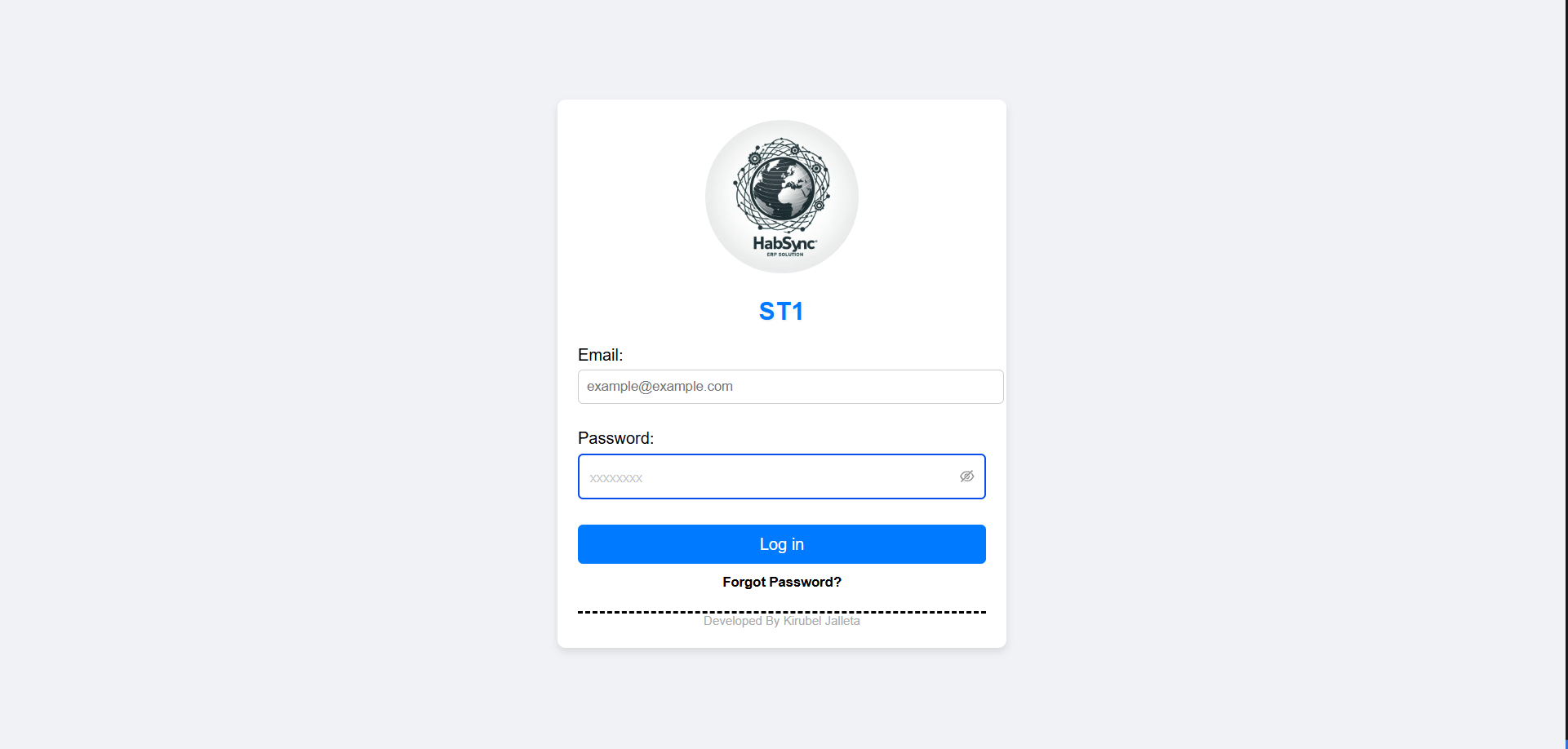
On this page, you’ll see fields for entering your username and password.
Step 2: Enter Your Credentials
Use the credentials provided to you by your administrator:
- Username: Your assigned email or username
- Password: Your initial password
Note: If this is your first time logging in, we prompted to change your password for security reasons.
Step 3: Familiarize Yourself with the Landing
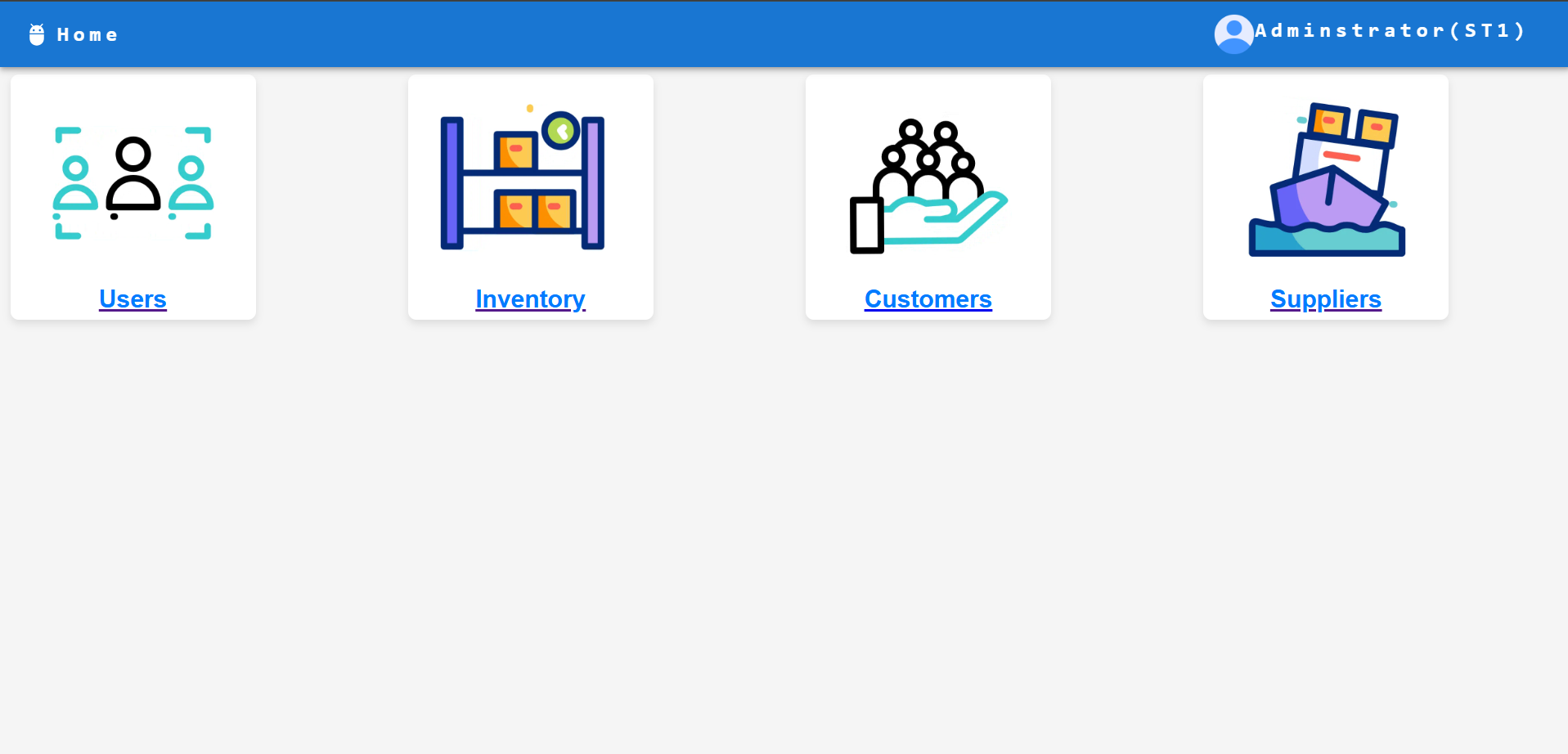
Once logged in, you’ll land on the main page. This is where you can access key ERP modules like:
- Inventory
- User Management
- Customers Management
- Suppliers Management
- And more...
Note: Not all users have access to the same modules. Access depends on permissions set by your administrator.
Navbar Actions
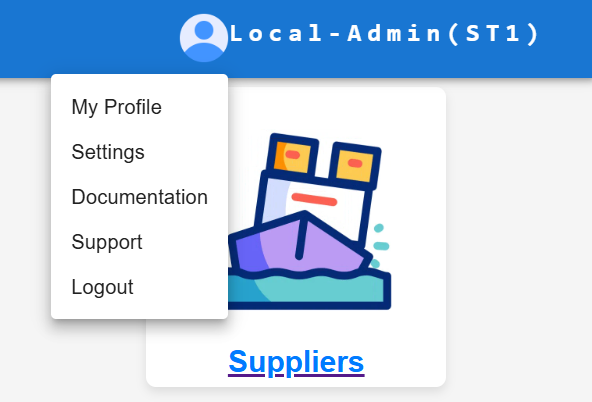
Click on the account avatar icon in the navigation bar to access key ERP options, including:
- My Profile
- Settings
- Documentation
- Support
- And more...
These features will be covered in detail in the upcoming sections.
Troubleshooting First-Time Login
If you encounter issues:
- Forgot Password?: Click on the “Forgot Password” link on the login page to reset it.
- Access Denied: Confirm that your account is active with your administrator.
Now you’re ready to begin using [Your ERP Name]! Explore our documentation for detailed guides on each feature.